
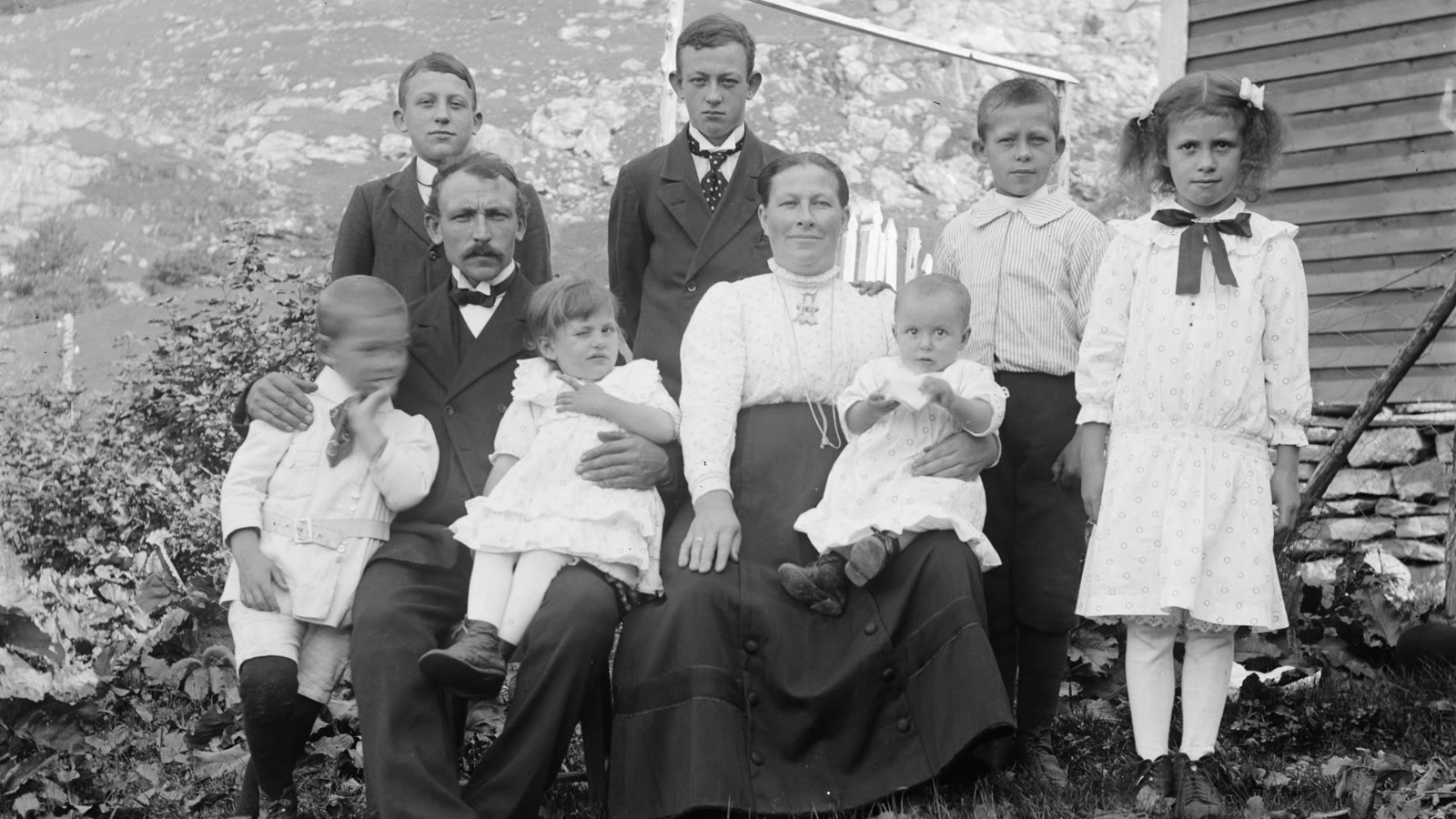
Old family photos often sit in albums or phone galleries for years. You might have a picture of your grandparents on their wedding day, a childhood portrait of your parents, or an old family photo that has started to fade. With AI image to video tools, you can turn a still picture into a short clip with subtle movement, such as blinking, smiling, or a gentle camera motion.
The trick is choosing the right photo and asking for the right kind of movement. If you request too much, faces can change, hands may look strange, and the result might not resemble the original people. Here is a practical way to animate old photos with AI while keeping the result as close to the original memory as possible.
Choose the Best Version of Your Old Photo
Before opening an AI video generator, check the image you want to use. You do not necessarily need a perfect, high-resolution photograph, but the main subject should be recognizable.
If the photo is printed on paper, scan it if possible. A flat, evenly lit scan avoids the glare, shadows, and perspective distortion that can appear when you photograph a picture with your phone.
If you do not have a scanner, place the photo on a flat surface near a window. Hold your phone directly above it, avoid reflections, and make sure the entire face is in focus.
Pay particular attention to the eyes, mouth, and outline of the face. If these details are difficult to see in the original, the AI may invent details when generating movement.
You should also keep an untouched copy of the original image. It gives you a reference if you decide to restore or edit the photo later.
Should You Restore the Photo Before Animating It?
Not every old photograph needs restoration first.
If the face is clear but the image has some grain, fading, or small scratches, try animating the original photo before making changes. Restoration tools can sometimes smooth away genuine facial details or produce a face that looks slightly different from the person in the original.
If the photo has severe fading, large creases, or damage across the eyes and mouth, make a separate, gently restored copy and test that version too.
For a black-and-white photograph, you do not need to colorize it just to create a video. Keeping the original monochrome appearance may produce a more faithful result.
A simple approach is to compare the original and restored versions using the same motion prompt. Choose the result that better preserves the person's appearance rather than automatically selecting the sharpest image.
Upload the Photo and Describe a Small Movement
Open an AI image to video generator that supports image uploads. Add your photograph as the starting frame, then enter a prompt describing what should happen.
For old family photos, subtle movements are usually a better starting point than dramatic actions. A gentle smile, a small head turn, or a slight change in gaze gives the model less movement to invent.
Here are three prompts you can try.
These prompts are starting points, not guaranteed instructions. Different models may interpret them differently, so generate a short clip first and adjust the wording if necessary.
Why Do AI-Animated Faces Sometimes Look Wrong?
One common problem is that the generated person looks similar to the original but not quite the same. The eyes may change shape, the smile may become exaggerated, or the face may appear to age differently between frames.
This happens because an image-to-video model generates new frames to create movement. It is not simply moving the original pixels around, and a text prompt cannot guarantee that every facial detail remains unchanged.
If the result looks unnatural, try these adjustments:
- Reduce the movement. Replace a broad smile or head turn with a small blink or slight change in expression.
- Simplify the prompt. Ask for one main action instead of several actions happening together.
- Use a clearer source image. Make sure the face is visible and not hidden by glare, damage, or heavy blur.
- Try a different version of the photo. Compare the original with a lightly restored copy if important facial details are damaged.
Do not keep adding more descriptive words if the model is already changing the person's face. A simpler instruction may give you a better result.
What If You Only Have a Black-and-White Photo?
Black-and-white photos can be animated without being colorized first. If you want the final clip to retain its original look, mention that in your prompt.
For example:
If you want a color version, consider creating a separate colorized copy and testing it independently. AI colorization estimates the colors that might have been present; it does not recover information that was never recorded in the photograph.
For historical or sentimental photos, keeping the original version alongside any edited versions is a sensible precaution.
Save and Share the Finished Video
Once you have a result you like, preview the entire clip before downloading it. Do not focus only on the first frame. Watch the eyes, mouth, hands, background, and edges of the photograph for unexpected changes.
If the video looks good for the first second but becomes distorted later, try generating another version with less movement.
You can keep the clip as a personal memory or combine several animated photos in a regular video editor. Adding a simple title or quiet background music can help connect the clips without requiring additional AI effects.
Before uploading family photos to an online generator, check how the service handles uploaded images and generated videos. If the photo includes living relatives or other recognizable people, consider their permission before sharing the animated result publicly. Be especially careful with sensitive family images or photographs of people who cannot consent.