
See What You Can Create with AI Image to Video
A single image can be the starting point for a moving scene. With AI image to video, you can add subtle motion to portraits, bring landscapes to life, or create short product clips from existing photos.
The result depends on the original image, your motion prompt, and the AI model you use. Start with a clear image and a simple idea, then adjust the prompt to get closer to the movement you want.
Animate Portraits
Add natural-looking movement to portrait photos, such as a gentle head turn, a blink, or hair moving in the breeze. For better results, use a clear image with the face visible and avoid asking for several complex actions at once.
Bring Landscapes to Life
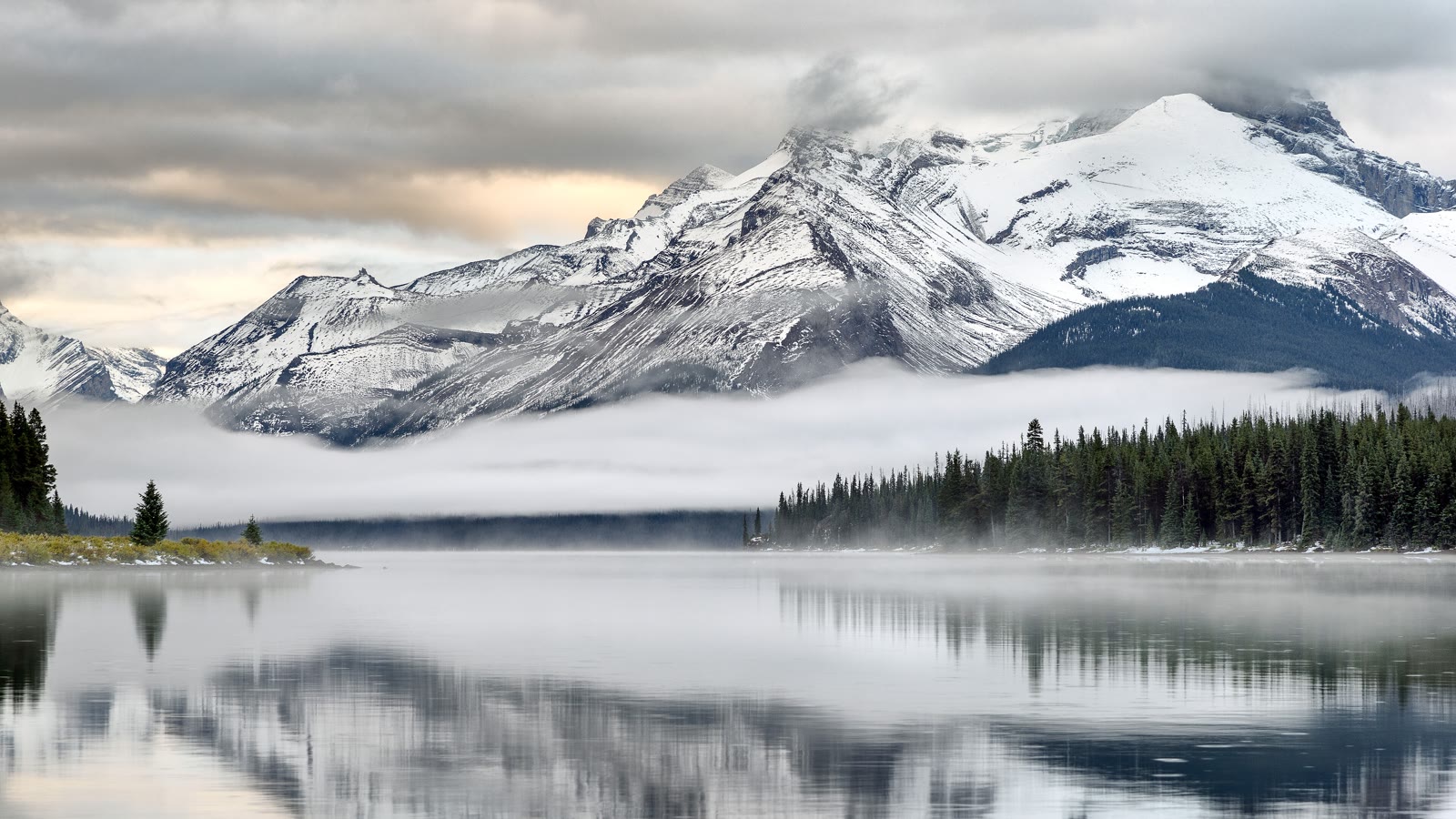
Turn a still landscape into a scene with drifting clouds, flowing water, moving grass, or gentle changes in light. Small environmental movements often work better than trying to animate every part of the image.
Create Product Videos
Give product photos a more dynamic presentation with a slow camera push-in, subtle rotation, or changing reflections. Keep the product itself as the main focus and describe camera movement clearly.
Animate Illustrations and Artwork
Add movement to digital art, fantasy scenes, and illustrations. You might animate floating particles, drifting fog, glowing lights, or a slow camera movement through the scene. Results can vary depending on the artwork and the model.
How to Turn an Image into a Video
You don't need to describe every detail of your image. The original picture already provides the visual starting point. Focus your prompt on what should happen next.
Upload Your Image
Choose a photo, illustration, or product image that you want to animate. Images with a clear subject and a well-defined composition are a useful starting point.
Describe the Motion
Enter a prompt explaining how the subject or environment should move. For example, you could ask for a person to turn their head slightly, clouds to drift slowly, or the camera to move closer to a product.
Adjust Available Settings
If the generator provides settings for duration, aspect ratio, resolution, or model selection, choose the options that suit your project. Available controls depend on the tool.
Generate and Review
Generate the video and check whether the movement looks natural. If the result is too dramatic or changes important details, simplify your prompt and try again.
AI Image to Video Prompts You Can Try
A good image-to-video prompt focuses on movement rather than repeating everything already visible in the image. Start with one main action and add camera instructions only when needed.
Nature and Landscapes
Best for: Landscape photos, gardens, fields, and outdoor scenery.
Portrait Animation
Best for: Portrait photography and character images.
Product Photography
Best for: Product photos, promotional visuals, and online store content.
Fantasy and Digital Art
Best for: Fantasy illustrations, concept art, and imaginative scenes.
These prompts are starting points, not guaranteed instructions. Different models may interpret the same wording differently, so adjust the description based on the output.
Tips for Better Image to Video Results
Start with a Clear Image
A sharp image with a clearly visible subject gives the model a more useful starting point. Blurry details, overlapping subjects, or complicated backgrounds can make some movements harder to generate consistently.
Describe One Main Movement
Avoid combining too many actions in one prompt. Instead of asking a person to walk, turn, wave, and change expression at the same time, begin with one action and refine the result.
Be Specific About Camera Movement
Words such as "slowly zoom in," "pan to the left," and "move around the subject" describe different camera movements. Use the instruction that matches your intended result.
Keep Important Details Consistent
If you want to preserve a product's shape or a character's appearance, say so explicitly. However, text prompts cannot guarantee perfect consistency in every generated frame.
Use Subtle Motion When Appropriate
Small movements can make a photo feel more natural. Gentle wind, drifting clouds, slight head movement, or a slow camera push-in may work better than dramatic motion for certain images.
What Is the Difference Between Image to Video and Text to Video?
Image to video starts with an existing image, which helps establish the initial appearance and composition of the scene. You then describe the movement you want to introduce.
Text to video starts with a written description and generates the scene from that prompt. It can be useful when you don't have an existing image to use as a reference.
Choose image to video when you want to animate a particular photo, product image, or illustration. Choose text to video when you want to create a scene primarily from a written idea. The exact capabilities depend on the model being used.