
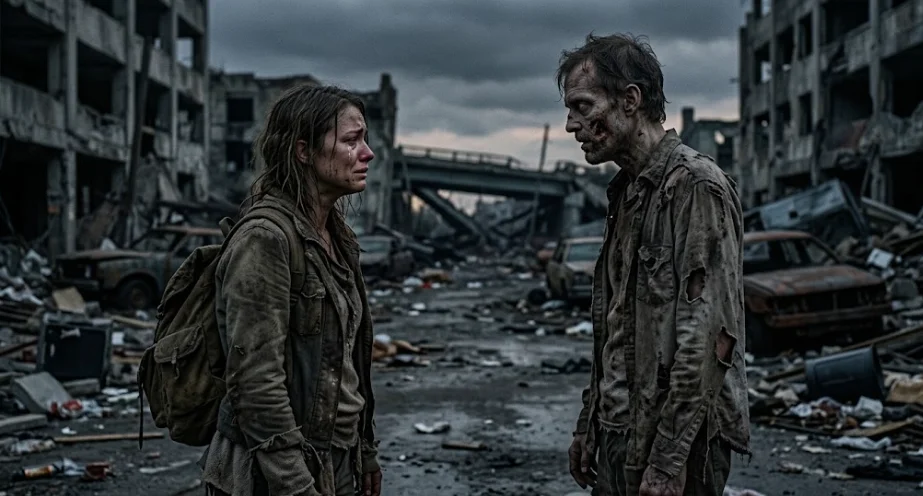
If you've been scrolling through TikTok or Instagram Reels lately, you may have seen videos where someone faces a loved one who has turned into a zombie. Instead of fighting back, they lower their weapon and open their arms. Just as the zombie rushes toward them, the scene changes to a warm memory of the two together.
This is the AI Zombie Trend, sometimes called the zombie hug trend. It's a short, cinematic AI video built around a simple emotional twist: choosing love over fear.
The good news is that you don't need to film a zombie scene yourself. You can use AI video generation to create a similar story from photos of two people. Here's how to make one, which tool to try first, and what to do when the result doesn't look right.
What Is the AI Zombie Trend?
The AI Zombie Trend is a short-form video style that combines zombie horror with an emotional love story. A typical video follows a few simple beats:
- One person has become a zombie, while the other faces them in a ruined or abandoned setting.
- The human hesitates instead of attacking.
- They lower their weapon and open their arms.
- The zombie rushes toward them, and the scene cuts to a happier memory, such as the couple embracing in a sunny field.
The contrast between the frightening opening and the warm ending is what makes the format memorable. It also works with friends, spouses, siblings, or parents and children.
Creators use AI to generate the transformation, character movement, dramatic lighting, and scene transition. The result can look like a tiny movie rather than a standard photo filter.
Which AI Tool Should You Use?
For this style of video, Seedance 2.5is a good first tool to try. ByteDance's official model information describes support for video generation up to 30 seconds, reference-based creation, and more complex storytelling with scene changes. These capabilities are useful when a video needs to move from a tense encounter to a warm memory. Availability and controls depend on the platform providing the model.
You can try the Seedance 2.5 workflow through Dreamina. Check whether the model and reference options are available in your account and region before starting.
You may also come across ready-made zombie video generators. These can be easier if they let you upload two photos and generate the effect automatically. However, their pricing, supported models, and output quality differ, so check the cost before spending credits.
For this tutorial, we'll focus on a reference-based workflow, which gives you more control over who appears in the video.
How to Make an AI Zombie Trend Video
Step 1: Choose Two Clear Photos
Prepare one photo of each person you want to feature. Front-facing portraits with good lighting usually make useful starting references.
Try to choose photos where the faces are unobstructed and the subjects are easy to distinguish. Avoid heavily filtered images, sunglasses, extreme angles, or pictures where several people overlap.
You don't need professional photographs. Clear phone pictures can work, although the result will depend on the model.
Step 2: Open Seedance 2.5
Open Dreamina and enter its AI video creation workflow. If Seedance 2.5 is available, select it and look for a reference-based or image-reference mode.
Upload the two photos and identify which person should remain human and which should become the zombie. If the interface supports naming individual references in your prompt, use those references to make the roles clear.
If your account doesn't offer this model or mode, use a generator that supports multiple image references. Don't assume every website advertising Seedance provides the same features.
Step 3: Copy and Customize This AI Zombie Prompt
A useful prompt needs more than the word "zombie." It should describe the characters, their actions, the camera, the mood, and how the ending connects to the opening.
Try this English prompt:
You can replace the final meadow with a location that means something to the people in your photos, such as a beach, a garden, or a favorite travel destination.
If the tool struggles with the weapon scene, remove the weapon and describe the human stepping back, hesitating, and then opening their arms. The emotional choice matters more than the prop.
Step 4: Generate and Review the Video
Generate the first version and watch it from beginning to end. Don't judge the result only by how realistic the zombie looks.
Check these four things:
- Face consistency: Do both people still resemble the reference photos?
- Action: Does the human clearly hesitate before opening their arms?
- Transition: Does the final happy memory feel connected to the earlier scene?
- Timing: Does the video give the emotional moment enough time to register?
If the characters look different halfway through, simplify the prompt and reduce unnecessary movements. If the transition feels abrupt, describe the exact moment when the scene should change.
You may need several attempts to get a usable result. Check the credit cost before regenerating, especially if you're using a paid model.
Step 5: Edit It for TikTok or Instagram Reels
Once you have a good generation, use a video editor such as CapCut to make the final adjustments.
A few small edits can make a noticeable difference:
- Trim any awkward movement at the beginning or end.
- Keep the video vertical at 9:16 for short-form platforms.
- Add music that shifts from suspenseful to emotional, if appropriate.
- Use a simple caption, such as "Would you still choose me?"
- Watch the final export to make sure the transition and audio work together.
Don't add too many effects. The strength of this trend comes from the contrast between the frightening situation and the loving ending.
Why Does My AI Zombie Video Look Wrong?
The Faces Change During the Video
AI models can struggle to preserve identity when characters turn, move quickly, or appear in different lighting. Start with clearer photos, use reference mode when available, and explicitly ask the model to preserve facial features and hairstyles.
The Hug Looks Unnatural
Physical contact is difficult for video models. Instead of asking for a complicated embrace with several movements, use a simpler sequence: the human opens their arms, the zombie approaches, and the camera cuts to the memory scene before the contact becomes too complex.
The Ending Doesn't Match the Beginning
Describe the same people in both scenes and specify the visual transition. You can also generate the opening and memory as separate clips, then join them in an editor. This takes more work but gives you greater control over the final cut.
The Video Looks Like a Horror Clip, Not a Love Story
The emotional contrast may be missing. Include details about the human's hesitation, their expression, and the warmer atmosphere of the final scene. The zombie makeup alone won't create the feeling that makes this trend work.
Can You Make the AI Zombie Trend with a Pet?
Yes, you can adapt the same basic idea for a dog or cat. For example, you could create a dramatic scene where a pet returns to its owner in a zombie apocalypse, followed by a happy memory of them playing together.
However, pet videos need different prompts because preserving fur patterns, ear shape, body proportions, and natural animal movement is especially important. A prompt designed for two people may not produce a convincing pet video.
For a pet-specific walkthrough, see our guide on how to make an AI zombie video with your pet.
Final Thoughts
The AI Zombie Trend works because it turns a simple visual effect into a story people can understand in seconds. With two clear photos, a reference-based video generator, and a carefully written prompt, you can create your own version without filming anything yourself.
Start with a simple story, focus on recognizable characters, and refine the emotional transition before adding more effects. A short video with a clear beginning and ending will usually be more effective than one overloaded with complicated actions.