
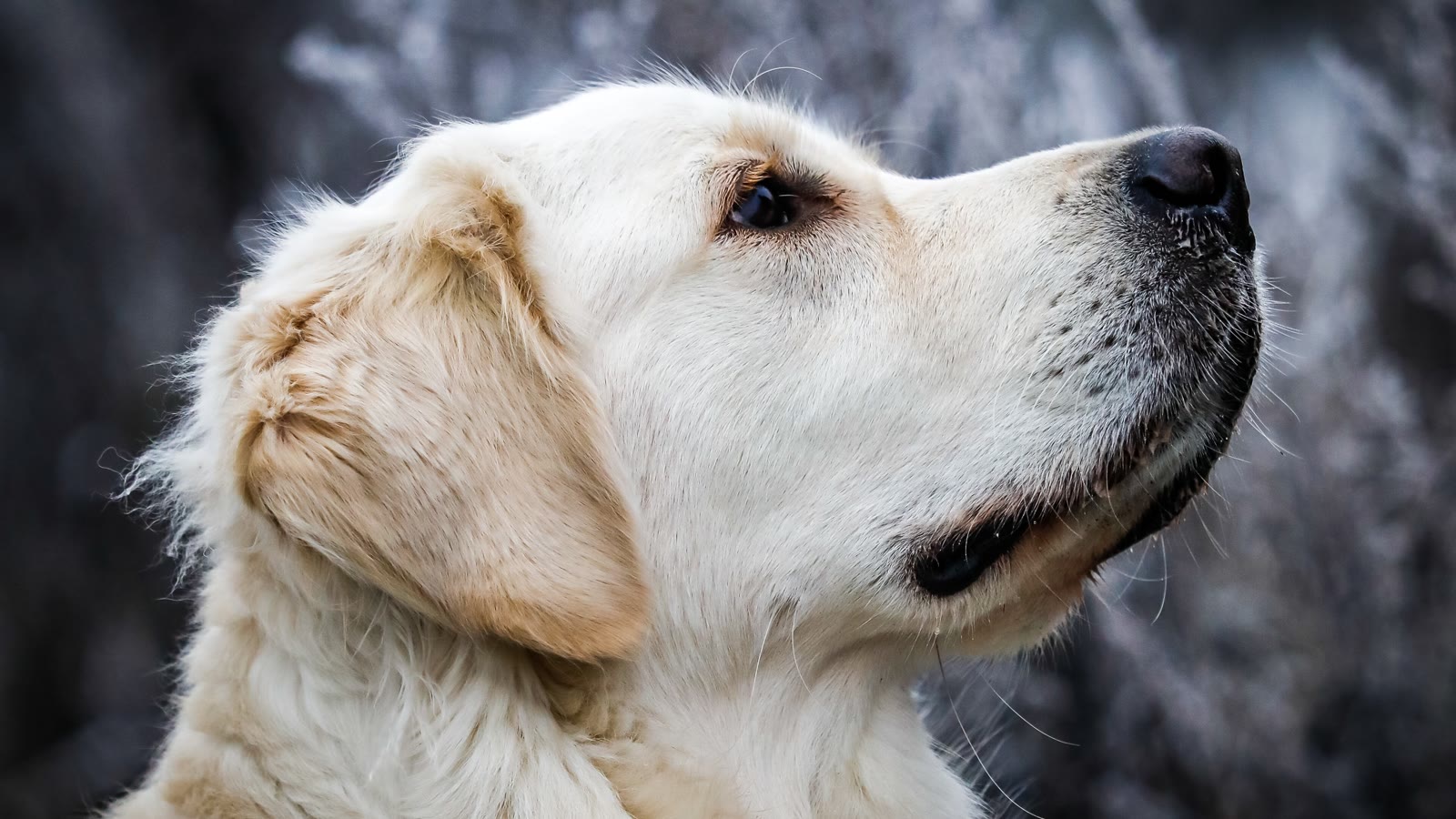
If you've been scrolling through TikTok, Facebook Reels, or Instagram lately, you may have seen dogs doing funny dance routines or cats moving like professional dancers. Some of these clips look surprisingly convincing, even though they may have started with just one ordinary pet photo.
Want to make one with your own dog or cat? You don't need to film your pet dancing or learn video editing. An AI video generator can create movement from a still image. The key is choosing the right tool and giving it a clear idea of the dance you want.
Which AI Tool Should You Use to Make a Pet Dancing Video?
Seedance is the first tool I'd try, especially if you want to experiment with custom dance movements rather than use a fixed template. Its image-to-video workflow lets you start with a photo and describe the movement you want. Some reference-guided workflows also support video references to help direct the action. Availability depends on the version and platform you use.
Here are three approaches worth considering:
Seedance: For Custom Pet Dance Videos
Use Seedance when you want to turn a specific dog or cat photo into a short, animated clip. You can describe movements such as swaying from side to side, moving the front paws, or performing a playful spin.
If your chosen version supports video references, you can also explore using a dance clip to guide the movement. This may be more suitable when you want to recreate a particular routine instead of leaving the entire dance to the model.
One thing to keep in mind: a general image-to-video prompt doesn't guarantee a coordinated dance. You may need several attempts, and complex movements can change your pet's appearance.
AI Pet Dance Generators: For Quick Results
Some specialized pet dance tools provide ready-made animations. You upload a pet photo, select a dance template, and generate a clip.
This approach can be easier if you don't want to write prompts. However, check whether the tool supports cats as well as dogs, what its free-generation limits are, and whether downloads require payment.
Motion Transfer Tools: For a Specific Dance Routine
If you have a particular dance video in mind, look for a tool that supports motion transfer or reference-video guidance. These workflows use a video to help direct the generated movement.
Not every image-to-video generator offers this feature. Before uploading your photo, confirm that the selected tool supports both your source image and the type of motion reference you want to use.
How to Make Your Pet Dance with Seedance
Once you've opened a Seedance interface that supports image-to-video generation, follow these steps.
Step 1: Upload a Suitable Pet Photo
Choose a clear photo where your pet's body is visible. A full-body image is generally a better starting point for a dance that involves the legs and front paws.
Avoid photos with heavy blur, hidden limbs, or a complicated background. If you want your dog or cat to appear to dance upright, remember that generating this pose from a photo of an animal lying down may be more difficult.
Step 2: Write a Dance Prompt
Describe the movement rather than repeating every detail already visible in the photo. Start with one simple routine, such as swaying from side to side and moving the front paws.
You can use the examples in the next section as a starting point.
Step 3: Adjust the Available Settings
If your interface offers video duration, aspect ratio, resolution, or reference-video inputs, choose the settings that suit your project. For a social media post, vertical video can be a practical choice.
Not every Seedance interface exposes the same controls, so use the options actually available on your screen.
Step 4: Generate and Review the Video
Watch the whole clip before downloading it. Check whether your pet's face, fur pattern, paws, and body proportions remain reasonably consistent.
If the dance looks awkward, simplify the prompt or try a different photo. A few small adjustments can be more useful than adding lots of extra instructions.
AI Prompts for Dancing Dogs and Cats
Here are three prompts you can try with an image-to-video generator.
These prompts describe desired movements, but they cannot guarantee a perfect result. If your pet's body becomes distorted, reduce the number of actions and try a simpler routine.
What If Your AI Dancing Pet Looks Strange?
A funny video is the goal, but there's a difference between an amusing dance and a clip where your pet's face changes completely.
If the output doesn't look right, try these fixes:
- The face changes: Use a clearer photo and reduce head movement.
- The paws look unnatural: Avoid complicated paw gestures and start with simple side-to-side movement.
- The body becomes distorted: Choose a full-body image and reduce the complexity of the dance.
- The background keeps changing: Ask for a steady camera and a consistent background.
- The dance doesn't match your idea: If supported, try a dance reference video or use a preset template instead.
AI video generation is not perfectly predictable. You may need to generate more than one version before finding a clip you like.
Make Your Pet Dance Video Ready to Share
Once you're happy with the result, you can add music, captions, or simple editing effects using a video editor or the social platform's own editing tools.
For TikTok, Instagram Reels, and Facebook Reels, a vertical 9:16 format is a sensible starting point when supported. Keep the dance easy to see and avoid adding so many effects that the movement gets lost.
If you use a recognizable song, check the platform's music rules, especially if you plan to use the video commercially. Also, use a photo you own or have permission to use, and check the AI service's terms before publishing the result.
The best part is that you don't need a perfect pet photo or a complicated prompt to get started. Choose a clear image, try a simple dance, and adjust the movement until you get something worth sharing.