
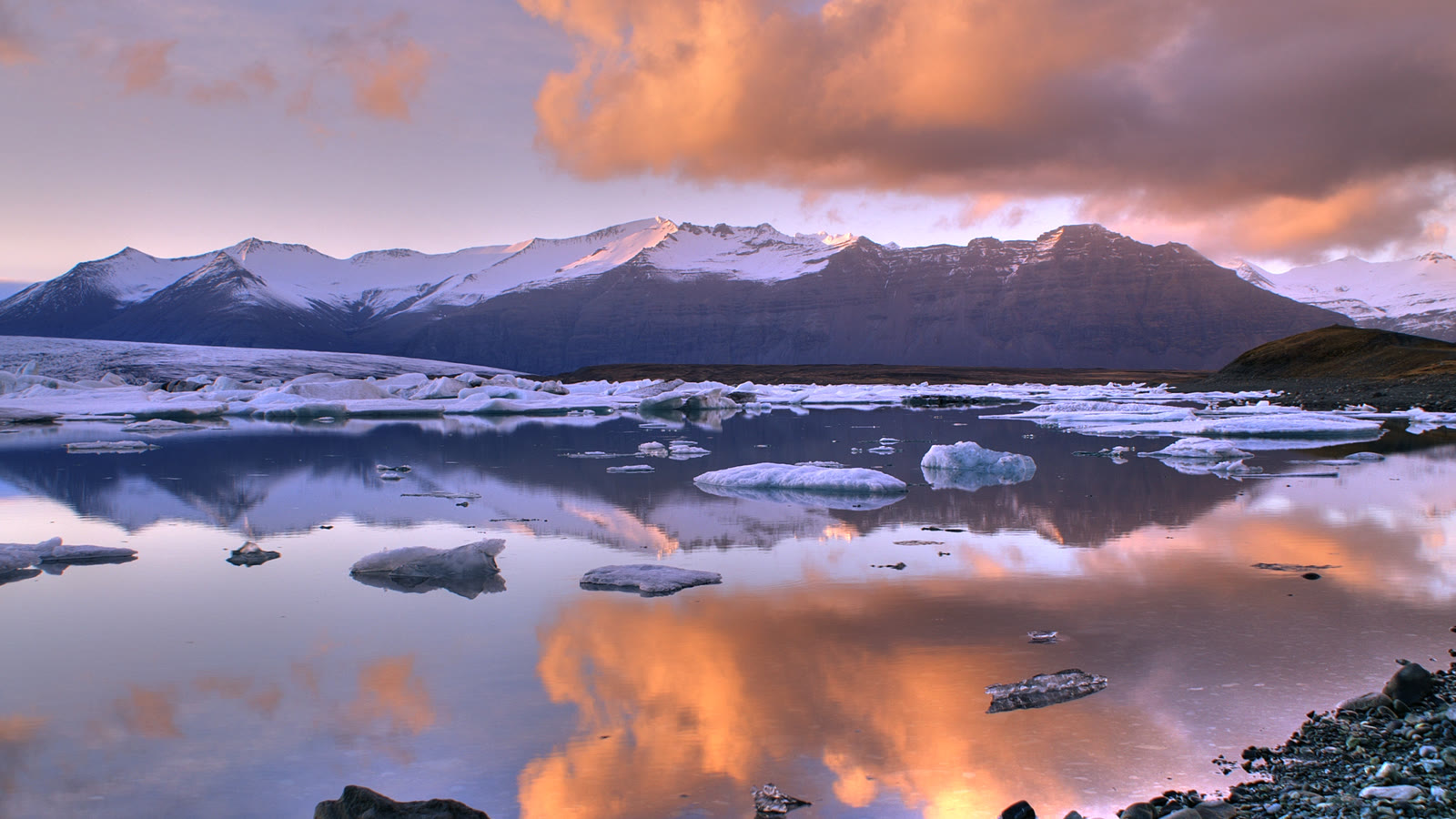
You probably have dozens of travel photos sitting in your phone gallery. A beautiful beach, a mountain view, a street you wandered through, or a sunset you didn't want to miss. The photos look great on their own, but putting them together into a video can make the whole trip feel more memorable.
With AI, you can go beyond a regular slideshow. You can animate a single travel photo to create moving clouds, rolling waves, or a slow camera movement across a landscape. You can also combine several animated photos into a short travel video for TikTok, Instagram Reels, or your personal travel collection.
Here's how to do it without complicated editing.
What Is the Best Way to Animate Travel Photos?
It depends on the result you want.
- AIimage-to-videotools: Best for turning a single landscape or travel photo into a moving scene. Seedance is one option to explore if you want cinematic camera movements and natural-looking motion.
- Video editors such as CapCut: Better for combining multiple travel photos, adding music, arranging clips, and including location names or dates.
If you want a photo of a waterfall to look more dynamic or a mountain scene to feel like a slow camera shot, start with an AI travel photo animation tool. If you simply want to put 20 holiday photos together with your favorite song, a slideshow editor may be all you need.
How to Turn Travel Photos into a Video with AI
You don't need professional editing skills. Follow these four steps.
Step 1: Choose a Travel Photo
Pick a clear photo with an obvious subject, such as a mountain, beach, city street, or famous landmark. Photos with good lighting and some space around the main subject usually work well.
Step 2: Upload It to an AI Video Tool
Open an image-to-video generator, upload your photo, and select the option to create a video from an image. If the tool offers different video sizes, choose vertical for Reels and TikTok or landscape for a wider travel video.
Step 3: Describe the Movement
Tell the AI what you want to move. For example:
You can change the movement to suit your photo. For a beach, try gentle waves. For a city street, try a slow forward camera movement.
Step 4: Generate and Save the Video
Generate the clip and check whether the movement looks natural. If the scenery changes too much, simplify your prompt and try again. Once you're happy with the result, export the video.
If you want to turn several travel photos into one video, repeat the process for your favorite pictures and combine the clips in a video editor.
AI Travel Photo Animation Prompts You Can Try
Different travel photos work better with different types of movement. You don't need long prompts. Describe the scene, choose one movement, and ask the AI to preserve the original location.
Beach and Ocean Photos
A still beach photo can feel more alive with gentle movement in the water.
This works well for coastal holidays, tropical destinations, and sunset photos.
Mountains and Natural Landscapes
Mountain photos often look good with slow camera movement and subtle changes in the sky.
Avoid asking for dramatic weather changes if you want the result to resemble the place you actually visited.
City Streets and Famous Landmarks
For city photos, a gentle camera movement can make the scene feel like a travel film.
Be careful with crowded scenes. AI may distort faces, signs, or moving people, especially when the original photo contains lots of small details.
Sunset and Scenic Views
Sunsets are ideal for subtle animation rather than dramatic changes.
The goal is to add movement without turning your actual travel memory into a completely different scene.
How to Make a Travel Video from Multiple Photos
Animating one photo creates a short clip. To tell the story of an entire trip, combine several photos in a video editor.
A simple sequence works surprisingly well:
- Start with a photo of the destination or a wide landscape.
- Add photos of places you visited during the trip.
- Finish with a sunset, favorite moment, or group photo.
Keep the clips short and use consistent transitions. Add background music if you like, and include brief location names or dates to help viewers follow the journey.
You don't have to animate every photo. Mixing a few AI-generated clips with ordinary photos can make the video feel more natural and save time.
Tips for Better AI Travel Videos
Choose photos with room for movement. A wide landscape often gives the AI more space to create a smooth camera move than a tightly cropped image.
Keep the motion subtle. Gentle waves, drifting clouds, and slow camera movements usually look more convincing than several dramatic effects happening together.
Protect the original scenery. If you're recreating a real travel memory, ask the AI to preserve the buildings, mountains, coastline, and other important details. Generated videos can still change these elements, so check the result.
Don't expect perfect animation every time. Water, tree branches, distant people, and complex architecture can look distorted. Try a simpler prompt if the first result feels unnatural.
Use the right format. Vertical videos suit TikTok and Instagram Reels, while landscape videos are useful for YouTube and larger screens.