
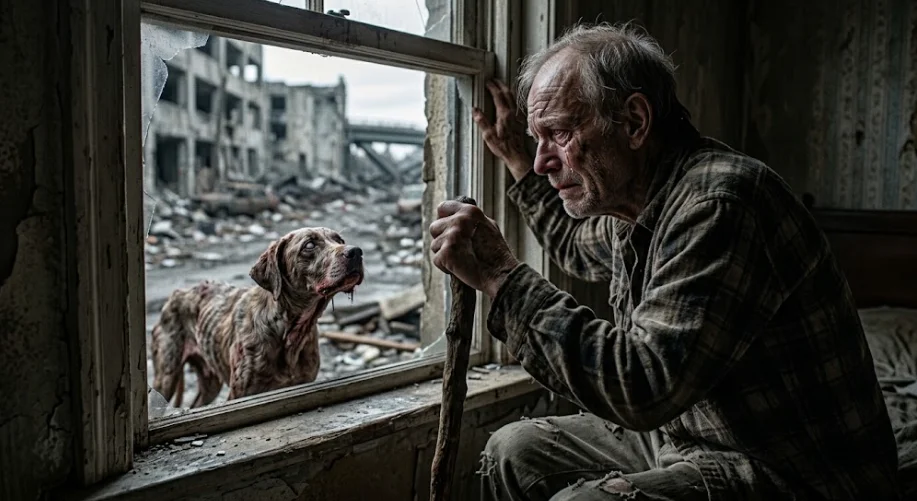
AI zombie videos are not just for couples. If you've seen the zombie hug trend on TikTok or Instagram Reels, you can adapt the same idea to your dog or cat. Imagine a dramatic scene where you find your pet in a zombie apocalypse, only to embrace them instead of running away. The video then cuts to a happy memory of you playing together in the sunshine.
The challenge is that pets are harder to animate consistently than people. A dog may suddenly change color, a cat's face may look different halfway through the clip, or the animal may move in ways that don't look natural.
You can reduce these problems by starting with a clear pet photo, using an AI video generator that supports image references, and keeping the action simple. Here's how to make your own version.
If you haven't seen the original style yet, read our guide to the AI Zombie Trend and how to recreate it with photos.
What Is the AI Zombie Pet Video Trend?
The idea is to turn an ordinary photo of your pet into a short cinematic story with a zombie-apocalypse setting and an emotional ending.
For example, you might appear in an abandoned street while your dog approaches with a spooky zombie look. Instead of being afraid, you open your arms. The scene then changes to a warm memory of you and your dog running through a field.
You can also make a cat version. Your cat might emerge from a dark doorway before the video transitions to a peaceful scene of the two of you relaxing at home.
The point isn't to make your pet look frightening for the entire video. The contrast between the dramatic opening and the loving ending is what makes the story work.
Which AI Tool Can Make a Zombie Video with Your Pet?
A reference-based AI video generator is a good place to start. For this workflow, try Seedance 2.5 if it is available through your preferred AI video platform and your account supports image references.
The basic process is to upload a pet photo, describe the scene you want, and generate a short video. If the platform supports multiple reference images, you can also upload a photo of yourself to help guide your appearance.
Keep in mind that a reference image does not guarantee perfect identity preservation. Some tools may alter fur patterns, facial features, or body proportions during movement.
If your chosen generator struggles to produce the entire story in one clip, create two separate videos instead: one for the zombie scene and another for the happy memory. You can combine them afterward in a video editor such as CapCut.
Before using a paid tool, check its current model availability, credit requirements, and whether it supports the image-to-video workflow you need.
How to Make an AI Zombie Video with Your Pet
Step 1: Choose a Clear Photo of Your Dog or Cat
The quality of your reference photo can make a big difference.
For a dog, choose a picture where the face, ears, fur color, and body shape are easy to see. A photo taken outdoors in natural light often works well.
For a cat, look for a picture that clearly shows the eyes, face markings, ears, and coat pattern. Avoid photos where the cat is mostly hidden under furniture or facing away from the camera.
You don't need a professional pet portrait. A clear phone photo is enough to start.
If you want to appear in the video too, prepare a separate photo of yourself. Ideally, both photos should have reasonably clear lighting and unobstructed faces.
Step 2: Open an AI Video Generator
Open your chosen AI video tool and look for an image-to-video or reference-based video mode. If Seedance 2.5 is available, select it.
Upload your pet photo and, if supported, your own photo. Explain exactly which character is the owner and which is the pet.
Avoid giving the model too many actions at once. A pet walking toward you, jumping into your arms, transforming into a zombie, and running through a destroyed city in one short clip can be difficult to generate consistently.
Start with one clear action and build the story around it.
Step 3: Use a Prompt Designed for Pets
A generic zombie prompt may focus too much on human faces and clothing. For pet videos, describe the animal's physical appearance and explicitly ask the model to preserve it.
Here is a prompt you can try with a dog photo.
For a cat, replace the dog-specific details with the cat's actual coat color, markings, eye color, and body shape. You can also change the action to something more natural for a cat, such as walking toward the owner or sitting beside them.
Don't expect the prompt to solve every problem. If the cat's body becomes distorted when it moves, simplify the action and generate a shorter clip.
Step 4: Generate the Video and Check Your Pet's Appearance
After generating the first version, watch the entire clip carefully. Pay attention to details that are easy to overlook in a single preview frame.
- Fur and markings: Does your dog keep the same coat color and distinctive patches? Does your cat retain its original face markings?
- Face and ears: Has the pet's muzzle, ear shape, or eye color changed?
- Body proportions: Does the animal still look like a real dog or cat?
- Movement: Does the pet walk naturally, or does it slide across the scene or move like a human?
- Story: Is it clear that the owner chooses to approach the pet rather than fear it?
If the pet changes appearance halfway through, remove unnecessary details from the prompt and emphasize identity preservation. If the animal moves unnaturally, ask for a slow walk or a simple approach rather than a jump or complicated embrace.
Generate another version only when you have identified what needs to change. This can help you avoid wasting credits on repeated attempts with the same prompt.
Step 5: Create a Better Ending
The final memory scene is where you can make the video feel personal.
For a dog, try a memory of playing fetch, walking beside you on a familiar path, or lying beside you in the grass.
For a cat, consider a scene of the cat resting on your lap, sitting by a sunny window, or rubbing against your hand.
You can generate the ending as a separate clip if the model struggles with the transition. Keep the same pet description in both prompts, then use an editor to join the two clips with a clean cut or a short transition.
This approach can also help you control the emotional pacing. The zombie scene creates tension; the final memory gives viewers a reason to care about the characters.
Common Problems with AI Zombie Pet Videos
My Dog or Cat Looks Different from the Original Photo
This is one of the most frustrating issues. The model may preserve the general breed or species but change small details that make your pet recognizable.
Use a photo with clear facial features, specify distinctive markings, and avoid dramatic changes in camera angle. If your tool supports stronger reference-image controls, test them before rewriting the entire prompt.
My Pet Has Extra Legs or an Unnatural Face
Complex movement increases the chance of visual errors. Start with a stationary shot or a slow walk. Avoid combining a transformation, a fast run, and physical contact in the same short generation.
If the problem continues, create separate clips for the opening and ending rather than trying to generate a complete story at once.
My Pet Looks Too Scary
The zombie theme doesn't require extreme horror effects. Ask for subtle fictional styling, such as dusty fur, a moody atmosphere, and dramatic lighting, while keeping the animal's face and body natural.
This is especially useful if you want a video that feels emotional and suitable for a general social media audience rather than a graphic horror clip.
The Owner and Pet Don't Interact Naturally
AI models can struggle with precise contact between different characters. Instead of asking for a perfectly realistic hug, have the owner kneel and reach out while the pet walks closer. You can then cut to the memory scene before the physical interaction becomes difficult to render.
Can You Make an AI Zombie Video with Any Pet Photo?
You can try with most clear pet photos, but results vary by animal, image quality, and video model.
Dogs and cats are convenient starting points because their appearance is familiar to viewers and there are plenty of possible everyday memory scenes. Other animals may also work, but the prompt needs to describe their real anatomy and natural movement.
Always use photos you have permission to use. If you plan to publish the result, also consider whether other people appearing in your reference images have agreed to that use.
Make a Zombie Story That Still Looks Like Your Pet
The most important part of an AI zombie pet video is not how frightening the animal looks. It's whether viewers can recognize the pet and understand the story.
Start with one good photo, keep the movements simple, and give the model clear instructions about the animal's appearance. If one long generation keeps changing your pet's face or body, create separate clips and edit them together.
Once you have a consistent result, experiment with different settings and endings. A dark, abandoned street followed by a sunny walk with your dog or a quiet moment with your cat can turn a familiar AI trend into a much more personal video.